Showing posts with label Drawing Software. Show all posts

Wednesday, September 26, 2018

How to draw exterior walls in sketchup

This instructional video is presented by the renowned sketchup teacher, Mr Aaron, for worldwide sketchup users.

The video demonstrates some effective processes for drawing exterior walls in sketchup on the basis of an imported image file related to architectural drawings.


This video is the part two of the sketchup skill builder series and architectural modeling. The drawing of the exterior wall is started on the basis of a reference image.
To learn the detail process for drawing exterior walls, go through the following video tutorial.
Video Source SketchUp
~~~~~~~~~~~~~~~~~~~~~~~~~~
Published By
Rajib Dey
www.sketchup4architect.com
~~~~~~~~~~~~~~~~~~~~~~~~~~

Monday, May 7, 2018

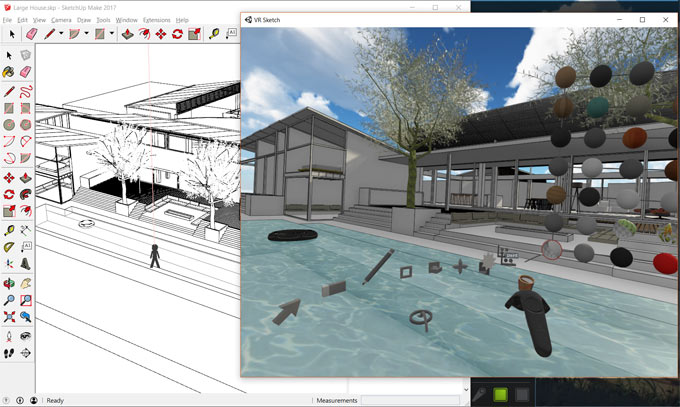
VR Sketch – A new wing has been added to extension warehouse

Maciej F is the developer of the newest sketchup plugin alias VR Sketch. It is well matched with sketchup 2017 and sketchup 2018. It is only compatible with windows platform.

It can be used for editing and visualizing architectural models from SketchUp in virtual reality. HTC Vive with SteamVR installed should be necessary for present setup.-
The trial version of the plugin functions for 2 weeks. After that a paid version is required with free access for 2 weeks.
The current version allows the users to view and edit directly in VR and the users can use it to deal with large models. The link from SketchUp files is instant and it is possible to edit both on the monitor and in the VR simultaneously.
The present version is not intended for photo realism and rather features on having a cartoonish but well performing mode that allows you to edit SketchUp files 100s of megabytes in size.
To get more information, go through the following link vrsketch.eu
~~~~~~~~~~~~~~~~~~~~~~~~~~
Published By
Rajib Dey
www.sketchup4architect.com
~~~~~~~~~~~~~~~~~~~~~~~~~~
Thursday, January 18, 2018

Drawing basics on SketchUp – Edges and Faces

SketchUp is the easiest 3D software application that allows you to draw models flawlessly. The drawing basics involve a few interesting features and tools that help you understand how to sketch the model correctly. They are as simple as the uncomplicated a designing concept of 2D. Since the edges and faces play the primary roles, you have to understand the application of different tools concentrated on performing the same task. Learning them will keep you a step ahead to design the models without any obstacles. The content discusses lines, faces and inferences.

Drawing a line:

Drawing a line in SketchUp does not take your long time. It follows some simple steps and they are described below.

• Choose the line tool from the tool bar or press L. The cursor transforms into a pencil.
• Click on the starting point of the line on SketchUp.
• A line will follow when you move around the cursor.
• The measurement box displays the length of the line.
• The line you are drawing turns into a specific color (red, green or blue) as per the color of the axis it parallels with.
• Click the end point of your line. Remember, the end point can be a start point of a new line.


Creating a face:

A face on SketchUp creates with the assembling of lines or edges. It is a common kwon fact that faces are plain always. On the application, some faces remain in shading and some are opaque. This very characteristic represents the core design of 3D that distinguishes from the 2D part. Shapes can be rectangular, circle and polygon.

Dividing faces:

Dividing faces of model is as simple as you expect. Draw a line on the model and use the push pool tool to divide the face.

Opening in 3D shapes by erasing edges and faces:

Opening in 3D shapes is a must-know lesson that enhances your knowledge to design even the toughest models. You can use an erase tool to eliminate the lines and edges to create an opening. The steps below will help you.

• Select the erase tool.
• Click the edges that you want to erase.
• To erase a face, context-click on the face and choose the erase tool.


Lines and inferences:

Inferences are an associated tool that tells the cursor position in the line by different color dots and screen tip boxes. Hover your cursor around the model and you witness many inferences with different applications.

The drawing basics on SketchUp are based on the two basic characters of the application – edges and faces. To draw anything on Sketch, these two dominate your complete drawing.


Article Source: blog.sketchup.com

Drawing basics on SketchUp – Edges and Faces

~~~~~~~~~~~~~~~~~~~~~~~~~~
Published By
Rajib Dey
www.sketchup4architect.com
~~~~~~~~~~~~~~~~~~~~~~~~~~

Monday, November 27, 2017

E-on Software Announces the Availability of Release 4 of VUE 2016 and PlantFactory 2016 Software

Adds Stereo Rendering, VR180 Support, Multi-Polygonal and Crossed-Planes Leaves and Numerous User Experience Improvements
E-on software, a leading global developer of software for the creation, animation, rendering, and integration of natural 3D environments in the computer graphics, VFX, architecture, and gaming industries, today announced the immediate availability of Release 4 (R4) of its VUE and PlantFactory 2016 software.
The free versions of its VUE 2016 and PlantFactory 2016 R4 software (Personal Learning Editions and Trial versions) are also immediately available.
Key New Features in VUE 2016 R4
• Stereoscopic Rendering:
a. Available for both panoramic (360° and 180°) and non-panoramic renders
b. For Stills and Animations
c. User defined Interpupillary Distance and final image layout (top/bottom or left/right)
d. 3 convergence modes for handling parallax: Parallel, Converged and Off-axis
e. Automatically recognized by Stereo-compliant platforms (such as Youtube) and can be played on stereo compliant devices such as Occulus Rift, HTC
Vive, Nvidia 3DVision, Sony PSVR, Google DayDream, Google Carboard etc.
• 180 Degree VR Panoramas (VR180)
a. Render a 180° vertical and horizontal FOV
b. Automatically recognized by VR180-compliant platforms (such as Facebook and Youtube)
• Multi-pass Rendering Improvements
a. Optimized handling of semi-transparent materials to prevent background color to bleed within object mask color data
b. Embed alpha channel for each mask pass (when the output format supports it)
• Path Tracer renderer improvements:
a. Adds support for normal mapping
b. Selection of OpenCL devices: All Available Devices, GPU Devices Only, or CPU Devices Only
• UX/UI improvements
a. Added support for CPUs with more than 64 cores on Windows
b. Improved 4K/HiDPI display compatibility
c. Better responsiveness and faster computation of Procedural Terrain within the Terrain Editor
d. Alembic compatibility updated to version 1.7.3
• xStream Integration:
a. Adds support for Maya 2018 (MentalRay and VRay - incl. viewport 2.0)
b. Adds support for Cinema 4D R19.
Key New Features in PlantFactory 2016 R4
• Multi-Polygonal Single-Plane Leaves
a. Perfect for both offline rendering and light enough for real-time
b. Grid based mesh to add more realism in the vegetation finer details
c. Leaves can be bent, curved, folded and react to wind
d. Compatible with auto and user-defined LODs
e. Compatible with color shift, multi materials, two-sided materials etc…
• Crossed-Plane Leaves
a. Particularly suited for real-time engines, or low level LODs
b. Ideal for representing complex plant geometry parts such as flower groups or dense foliage
c. Very effective in terms of polygon count and memory footprint
d. Select either 2 or 3 crossed planes (2 vertical + 1 horizontal)
e. Fully customizable texturing
f. 4 Normal computation parameters for perfect integration
• Multi-pass Rendering Improvements
a. Optimized handling of semi-transparent materials to prevent background color to bleed within object mask color data
b. Embed alpha channel for each mask pass (when the output format supports it)
• UI/UX improvements:
a. Improved export
b. Improved sap inheritance
c. Added support for CPUs with more than 64 cores on Windows
d. Added wireframe display for billboards
e. Improved display of billboards back face
f. Enhanced image browsing
g. Improved hooking points placement for warpboards
Availability: Release 4 (R4) is available as a free software update for all registered users of VUE and PlantFactory 2016.
The 2016 R4 Personal Learning Editions (PLE) and Trial versions are also immediately available. Users can download the 2016 R4 Personal Learning Editions at no charge from www.e-onsoftware.com/try.
All VUE and PlantFactory 2016 software titles are available in English, French and German and perform under all versions of Windows 7, Windows 8, and Windows 10 (64 bit only), and Mac Intel (64 bit) for MacOSX 10.7+.
More information on VUE 2016 and PlantFactory 2016 is available at: e-onsoftware.com/vueand plantfactory-tech.com.
E-on Software Announces the Availability of Release 4 of VUE 2016 and PlantFactory 2016 Software
~~~~~~~~~~~~~~~~~~~~~~~~~~

Published By
Rajib Dey
www.sketchup4architect.com
~~~~~~~~~~~~~~~~~~~~~~~~~~