Showing posts with label Warehouse. Show all posts

Tuesday, June 23, 2020

Top 8 Rendering plugins and software for sketchup

Sketchup is very useful for 3d modeling but it is evolved significantly in times to become an indispensible software for rending and visualization industry.

Given below, the details of some best rendering software and plugins for sketchup.

1) VRAY: VRAY is an easy to use plugin that supports sketchup. Vray can produce stunning photo-realistic renderings out of SketchUp, VRAY. Inside vray, there is a material editor as well as other useful tools which can be applied to generate pro quality images and animations.

VRAY can operate in SketchUp at free of cost with some powerful options and setting. Vray can transform your 3D visualization process to the next level.

2) JointPushPull: JointPushPull refers to a useful modeling plugin that includes 6 particular tools for transforming your model perfectly digital. The tools range from joint, round, vector, normal, extrude, and follow. If you have apply these tools in a perfect manner, they will reduce your modeling time significantly.

3) CurviLoft: CurviLoft is a useful sketchup plugin can be used for developing curvilinear models. There are 3 tools inside CurviLoft like loft by spline, loft along path, and skinning. In fact, the tool has the similar functionality as the ?follow me? tool instead of a simple extrusion along a path feature. With this features, CurviLoft can associate two diverse shapes along a path. The plugin is best suitable for organic modeling.

Top 8 Rendering plugins and software for sketchup

~~~~~~~~~~~~~~~~~~~~~~~~~~~~
Published By
Rajib Dey
www.sketchup4architect.com
~~~~~~~~~~~~~~~~~~~~~~~~~~~~

Tuesday, March 3, 2020

SketchOSM by PlaceMaker - New Horizons in Parametric World Modeling

Have you ever wondered, why not put your neighborhood on the map? The SketchOSM plugin for SketchUp, by PlaceMaker, lets you do just that! You can create parametric buildings in a few quick clicks and share them with the world in a jiffy.

Trimble SketchUp is famous for its flexibility, which comes from its ability to integrate many extensions or plugins from various sources. Though only SketchUp Pro and above can do this, it is still an awesome way to customize and empower this lovely modeling and rendering software.

One such great extension is SketchOSM by PlaceMaker.

What is SketchOSM by PlaceMaker?

The main functionality of the extension is two-fold. First, it lets you create 3D buildings that add site context to your model. You can do it by establishing a constant, which, in the equation of a curve or surface, can be varied to represent a family of curves or surfaces.

Secondly, you can share these buildings with the world by directly uploading them to OpenStreetMap. Yes, you guessed right, this is how the plugin gets its name, by combining the software and service names.

If you don’t know, OpenStreetMap is an enormous database of geoinformation, available to everybody on earth. It is accessible and editable by anyone.

It’s a completely free service, with no hidden charges or advertisements. Many devices and services already use them like car or phone GPS, websites, apps, and of course, millions of people.

SketchOSM by PlaceMaker

~~~~~~~~~~~~~~~~~~~~~~~~~~~~
Published By
Rajib Dey
www.sketchup4architect.com
~~~~~~~~~~~~~~~~~~~~~~~~~~~~

Friday, February 28, 2020

2019 GLASER STX (1.0.10) for Sketchup

2019 GLASER STX is the newest sketchup plugin available in extension warehouse. It is compatible with SketchUp 2016, SketchUp 2017, SketchUp 2018, SketchUp 2019.
STX (Section Tool eXtended) facilitates the users to simply generate easy sections having individual depth and differentiate among visible, cut and hidden components and demonstrate them in the preview with several colors. Sections are exported as DXF or GLASER -isb cad.
GLASER STX allows the definition of any cut depth, comes up with suitable functions for individual treatment of the section drawings and maximize the export to GLASER isb cad or into the DXF-format. Unnecessary components in the construction drawing, e.g. hidden edges, are filtered.
The same is applicable to 3D-layers for several components, which are also exportable. Consequently, a construction drawing is produced that is properly customizable to your needs. It can be instantly passed to GLASER isb cad or saved in DXF-format.
It is possible to simply identify any section planes with individual cutting depths and transmit them to GLASER isb cad . Along with SketchUp Pro one can implement the world of BIM data (IFC) for further editing.
2019 GLASER STX
~~~~~~~~~~~~~~~~~~~~~~~~~~~~
Published By
Rajib Dey
www.sketchup4architect.com
~~~~~~~~~~~~~~~~~~~~~~~~~~~~

Monday, December 23, 2019

SketchUp Extension Review : Solid Inspector 2

One of the best things about Trimble SketchUp is that it can extend its abilities by adding plugins or extensions to it. Today, we will talk about Solid Inspector 2, one such extension that helps in preparing your 3D model for 3D printing and other volumetric operations.

What is Solid Inspector 2

Solid Inspector 2 for SketchUp 2014 or later is a plugin or extension that you can use with a registered SketchUp Pro software. It finds and highlights the issues that are preventing your model from being a complete solid.

There are three main kinds of discrepancies that Solid Inspector 2 can detect in a given object: Model not solid, Useless face in model, Inverted face, Hidden lines.

The SI2 will highlight errors in a model and jump from one error to the next, repairing as you go. This gives the extension tremendous usability in confirming and repairing a model's solid shell. For anyone making solid models or 3D printing, this is an indispensable plugin.

Technical Details

The Solid Inspector 2 (SI2) extension can be found in the Extension Warehouse. The plugin is so popular, that chances are you will see it in the very first screen in the featured or most popular sections; if not, here is the link for the plugin page. The extension is also available in the GitHub repository, you can find it here.

Being an open-source development, you can download and use it for free. The RBZ is fairly small and installs fast. You would have to have Trimble SketchUp 2014 or newer in order to use the plugin. If you are using an older version of SketchUp, you can consider downloading the first version of the tool instead.

Read more
SketchUp Extension Review : Solid Inspector 2
~~~~~~~~~~~~~~~~~~~~~~~~~~~~
Published By
Rajib Dey
www.sketchup4architect.com
~~~~~~~~~~~~~~~~~~~~~~~~~~~~

Thursday, December 19, 2019

SketchUp Extension Review: Artisan

Ease of use, simple interface, and flexibility are the main reasons behind the enormous popularity of Trimble SketchUp. The said flexibility of SketchUp comes from the ability to upgrade, enhance, and change the way its default tools behave by the addition of a myriad of extensions from outside. SketchUp Pro and above enable this feature for the users, who can find these extensions in the SketchUp Extension Warehouse 2.0 or some third-party web sites.

Artisan is one such extension or plugin. This powerful plugin can turn SketchUp from a 3D geometric designer to a 3D organic modeler. In other words, Artisan lets you design your model with such complex geometry that the result looks and feels like a natural object. For example, you can literally draw a lifelike flower using the Artisan extension.

Previously, Artisan was released with the name "Subdivide and Smooth" and it was a hit then already. Developer Del has worked hard for two years over it and the child of this labour is what we see as Artisan - a complex remake and upgrade with a plethora of added features.

The extension exposes itself in the form of a toolbar with large, friendly-looking buttons. Each button represents an important function, and they are arrayed in four basic functional groups. These are Surface Subdivision, Sculpting Tools, Vertex Transformation, Mesh Optimization. Let us delve further into each group below.

1. Subdivision Surfaces
These functions are used for smoothing a given hard geometry by introducing more subdivisions in the object to make it appear more organic and softer. The robust subdivision algorithm works blisteringly fast on any number of selected faces, groups or components. You can also use the Crease tool to create hard edges from edges or vertices. The Knife tool will let you create loops and the Extrude tool will further help you in this by making loops without interior faces. With the latest version of Artisan, you can preview the subdivision content change before committing. The Proxy button presents you with a low-poly mode that updates subsurface geometry in real-time parallel to your editing.
SketchUp Extension Review: Artisan
~~~~~~~~~~~~~~~~~~~~~~~~~~~~
Published By
Rajib Dey
www.sketchup4architect.com
~~~~~~~~~~~~~~~~~~~~~~~~~~~~

Tuesday, December 17, 2019

SketchUp Extension Review: TrueBend

Arguably the most popular 3D modeling and design software on earth, Trimble SketchUp gathers its immense following and customer base due to the user-friendliness and flexibility of the application. The flexibility comes from the enabling of adding external code, called “extensions” or “plugins”, into SketchUp. These extensions enhance the way SketchUp tools behave, add new tools or new content to enrich and ease your usage of the software.
One of the points to remember while intending to use SketchUp extensions is that only the SketchUp Pro version or above allows the users to import extensions within it. The Free, Make or Shop versions do not have this ability.
Most extensions for SketchUp are found in the Extension Warehouse from Trimble, which has released the 2.0 version of it recently with new and improved features. Other third-party web sites also host SketchUp extensions. One of these Extensions is called TrueBend, and it is that of which we will talk about today.

What is TrueBend

TrueBend from Thom Thom is a quite popular Trimble SketchUp extension found in the Extension Warehouse. When integrated with SketchUp, it enables the user to bend a given object for a certain degree. It will retain the original length of the object instance. The plugin uses the bottom front of the bounding box edge, therefore the user needs to line up the instant axis line up with the bend.

How TrueBend Works

    The TrueBend plugin helps the user in bending an object within SketchUp for a given radius. It will also help you to bend the instance while maintaining the length of the object. Let us take an example to understand this better. Consider that the user wishes to bow a shape 60 inches long and the curvature of the bend is 180 degrees. To do this, the user needs to select ‘TrueBend’ in the menus or toolbar, and then click and drag the red bar on the SketchUp design screen to bend the object. Alternatively, you can click the red bar and enter the curvature value in degrees in the VCB for a precise manual curving. After finishing the dragging, or hitting enter after giving the value, you will see that the object instance has bowed to form the expected shape yet it still retains the original length.
    SketchUp Extension Review: TrueBend

    ~~~~~~~~~~~~~~~~~~~~~~~~~~~~
    Published By
    Rajib Dey
    www.sketchup4architect.com
    ~~~~~~~~~~~~~~~~~~~~~~~~~~~~

Thursday, August 22, 2019

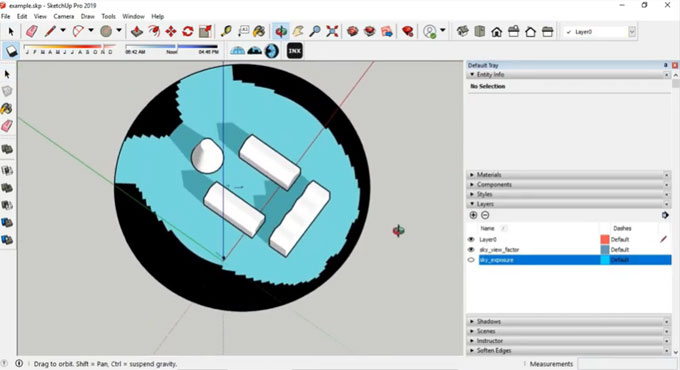
Sky View Analysis is the newest member in the extension warehouse

Sky View Analysis is an exclusive sketchup plugin that can be used to work out sky exposure and sky view factor.
SVF: Sky View Factor (SVFs) demonstrates the ratio at a point in space among the visible sky and a hemisphere centered over the analyzed location (Oke 1981).
• If SVF of a point is 0 the entire sky is barred from view through obstacles.
• If SVF of a point is 1 the whole sky is free from view through obstacles (ideal rural scenario).
A relation persists among Sky View Factor and Radiation.
for SVF = 0 :
1. there is no short-wave reflection
2. there is no long-wave nocturnal interference
for SVF > 0 :
1. incoming day-time short-wave reflection is raised throughout the day
2. outgoing night-time long-wave radiation is decreased
3. incoming night-time long-wave radiation is raised
4. altered soil heat flux
Features:
• Generate Sky Exposure Mask
• Generate Sky View Factor Mask
• Apply several times similar dome for Sky Exposure measurement
It belongs to an open source plugin and it is available in GitHub-AntonelloDN
For online demonstration, go through the following video tutorial.
Sky View Analysis is the newest member in the extension warehouse
~~~~~~~~~~~~~~~~~~~~~~~~~~~~
Published By
Rajib Dey
www.sketchup4architect.com
~~~~~~~~~~~~~~~~~~~~~~~~~~~~
Tuesday, July 16, 2019

Attribute Inspector – The newest sketchup extension in the extension warehouse

Aerilius has developed the exclusive sketchup extension called Attribute Inspector. It belongs to a viewer and editor for entity and model attributes.

Attributes in SketchUp means supplementary pieces of information that is preserved with any entity, like groups, components, scenes.

As for instance one can preserve a part number, unit price, weight or notes with an entity and read or adjust that information later. All attributes are contained in SketchUp's report feature.

The purpose of this inspector is to maintain the user interface nominal and fully organized similar to SketchUp's inspector dialogs, it allows you to choose one or more entities and demonstrates their attributes. By editing the text fields, The changes are instantly reflected to the entities.

Application: (Menu) Window → Attribute Inspector

The dialog presents the attribute dictionaries of the currently selected drawing element. Apply the selection tool of SketchUp to choose another elements.

Press the +, ‒ buttons on the left side for addition or elimination of an attribute dictionary, and press +, ‒ on the right side for addition or elimination an attribute.

To choose other types of entities, select the type from the dropdown and perform:

• drawing elements: With SketchUp's selection tool it is possible to choose one or more drawing elements in the model (edges, faces, groups)
• definitions: With SketchUp's selection tool, it is possible to choose components/groups/images
• materials: By applying the materials browser and it is possible to choose a material. Attribute Editor will demonstrate the current material (could be not functional on OS X due to API bug).
• layers: With the layer manager and verify the radio button of the layer.
• scenes: With the scenes manager, it is possible to double-click the scene (to make it the current scene).
This sketchup extension is available in extension warehouse extensions.sketchup.com
Attribute Inspector – The newest sketchup extension in the extension warehouse

~~~~~~~~~~~~~~~~~~~~~~~~~~~~
Published By
Rajib Dey
www.sketchup4architect.com
~~~~~~~~~~~~~~~~~~~~~~~~~~~~

Wednesday, July 10, 2019

GOING FROM SKETCHUP TO UNITY USING PBR MATERIALS

SketchUp users are pro in creating different textures and models using various textures from the Extension Warehouse; similarly they can go from SketchUp to Unity with PBR materials.

This article will clearly describes about PBR materials and the way of going back on the PBR to Unity 5.6 pipeline workflow for SketchUp through some easy steps.

About SketchUp: SketchUp or Google SketchUp is mainly a 3D modeling computer program that is used for a broad range of drawing applications used by architects, interior designer, landscape architects, civil and mechanical engineers, film and video game designers also. SketchUp can be getting as a freeware version named SketchUp Make and a paid version with many more extra benefits called SketchUp Pro. SketchUp is software from Trimble Company and there is an online library of free model congregations and 3D Warehouse to which users can add other models; besides that, the program has drawing layout functionality with variable ‘styles’, supports third-party ‘plug-in’ programs hosted on the Extension Warehouse to supply other abilities and enables placement of its models in Google Earth.

PBR: PBR or Physically Based Rendering is a method of shading and rendering that provides a more perfect representation of how light interacts with the surfaces. PBR is also referred to as Physically Based Shading depending on the aspect of pipeline being discussed; PBR is usually specific to shading concepts and specific to rendering and lighting. Though, both these terms describe the process of representing assets from a physically accurate standpoint.

SketchUV: It is an UV mapping tool which is used to draw spherical, cylindrical, planer, tube, box, quad shapes and can do save, load, export and import. SketchUV is designed to be easier to use and UV mapping in general takes some time to get use to. The features are noted here:
  • It can draw planar, cylindrical and spherical UV projections at any orientation
  • It can be used in Box mapping
  • Tube mapping- it can be a great tool for objects created using follow-me tool
  • It can do Quad face mapping
  • It can also move, rotate and scale UVs
  • It can draw Triangulate geometry and remove distorted textures
  • It also save UVs and Load UVs where change materials and maintain UVs
  • It can export and import UVs using third party UV mapping software

Steps to go from SketchUp to Unity using PBR material:

  • Before beginning the process users need to install SketchUV extension for SketchUp from Extension Warehouse.
  • Then took the PBR textures and apply it on the model.
  • At last use the Pixplant for seamless texture and render map creation as this is powerful and easy to use.
  • For detailed process go towwww.sketchucation.com

Going from SketchUp to Unity using PBR materials

~~~~~~~~~~~~~~~~~~~~~~~~~~~~
Published By
Rajib Dey
www.sketchup4architect.com
~~~~~~~~~~~~~~~~~~~~~~~~~~~~

Friday, July 5, 2019

"CLEANUP3 TOOL FROM SKETCHUP EXTENSION WAREHOUSE"

SketchUp is an essential tool in 3D printing and SketchUp Extension warehouse is full of tools that are essential in the 3D printing and creating 3D printed models, such as CleanUp3.

About CleanUp3:

CleanUp3 is an essential tool for 3D printing which is created by Thomas Thomassen, who is a Modelmaker with a large desire for physical, digital and traditional design in most genres of the trade. He has focused on webdesign/programming and 3d visualizations and he has specialized in 3D modeling, SketchUp, webdesign, graphic design and web programming. This tool checks and simplifies the geometry of every SketchUp model and it combines multiple faces, eliminates extraneous data and erases any lines that don’t make a face.

CleanUp3 options:

Two of the most useful CleanUp3 options are Erase Duplicate Faces and Repair Split Edges, which can be enabled in the CleanUp3 menu. Usually Duplicate faces and split edges are errors that necessarily appear in the SketchUp 3D model while working in SketchUp and they drive 3D printer nuts. But both these two errors are difficult to recognize and repair manually. Besides that, it is also a great tool at simplifying STL files or 3D-printable files that need to import into SketchUp.

Features of CleanUp3

  • It fixes duplicate component definition names in model scope
  • Also clears unused items
  • It can erase hidden geometry
  • Also erases duplicate files
  • Erases lovely edges except edges on cut plane
  • Can remove edge material
  • Repairs split edges
  • Creates smooth and soft edges
  • Then put edges and faces to Layer0
  • Can merge identical materials
  • Also merge connected co-planer faces

Menus & Toolbars: Plugins>CleanUp

About SketchUp:

SketchUp or Google SketchUp is mainly a3D modeling computer program that is used for a broad range of drawing applications used by architects, interior designer, landscape architects, civil and mechanical engineers, film and video game designers also. SketchUp can be getting as a freeware version named SketchUp Make and a paid version with many more extra benefits called SketchUp Pro. SketchUp is software from Trimble Company and there is an online library of free model congregations and 3D Warehouse to which users can add other models; besides that, the program has drawing layout functionality with variable ‘styles’, supports third-party ‘plug-in’ programs hosted on the Extension Warehouse to supply other abilities and enables placement of its models in Google Earth.

About Extension Warehouse:


It is an online resource with various plug-ins developed made especially for SketchUp and these extensions help to add some special tools and features to SketchUp. These extensions can be found for any particular application like drawing or 3D printing and some industry specified tools for architecture, interior design, construction and many more. So basically in this Extension Warehouse people can do the following things:

  • Users can search extensions by name or as per the functionality.
  • They can also install various extensions with a single click of a button.
  • Or users can also control all the extensions from easy-to-use location in the My Extension page.

CleanUP3 tool from SketchUp Extension Warehouse

~~~~~~~~~~~~~~~~~~~~~~~~~~~~
Published By
Rajib Dey
www.sketchup4architect.com
~~~~~~~~~~~~~~~~~~~~~~~~~~~~

Monday, July 1, 2019

"How to handle Extension License Issues"

The SketchUp Extension Warehouse has uncounted kinds of extensions which come with their own licenses and if the license expired then problems occurred while working.

About Extension Warehouse:


It is an online resource with various plug-ins developed made especially for SketchUp and these extensions help to add some special tools and features to SketchUp. These extensions can be found for any particular application like drawing or 3D printing and some industry specified tools for architecture, interior design, construction and many more. So basically in this Extension Warehouse people can do the following things:

  • Users can search extensions by name or as per the functionality.
  • They can also install various extensions with a single click of a button.
  • Or users can also control all the extensions from easy-to-use location in the My Extension page.

Extensions come with their connected licenses that enable users to use the extension. If an extension has a licensing problem, SketchUp won’t load the extension and an error message will be shown. The status column on this error will help users to diagnose the actual problem.

Here is a list that will help users to outline the types of license errors and the way of resolving them:

Expired Trial:

When an extension trial gets expired, users just need to buy the extension to continue using it. Users can buy the extension from the extension details page or from the My extension page. While downloading an extension from the Extension Warehouse through a web browser or from a developer’s website it will come as an .rbz file that can be installed manually. Here are the steps to follow before installing: At first go to SketchUp and select the Extension Manager Option form Window menu, after clicking on it the Extension Manager window appears. Now click on the Install Extension button. The Open Dialog box will appear where users can find the .rbz file, just save it to the computer, select the file and click OK in Microsoft Windows or Open in Mac OS X.SketchUp will warn the users about installing only extensions from trusted sources just click OK option for further procedure and the extension will be installed. Purchasing Extensions in the 3D Warehouse: Anyone can purchase an extension through signing in to the Extension Warehouse or through any browser or SketchUp; but it is essential to sign in to the Extension Warehouse through SketchUp before installing a trial version or buying an extension. Here are some needed steps that need to follow before a purchase:

  1. Go to the extension detail page and click the Purchase button.
  2. In the prompted option, users have to enter their billing and payment information, billing information will verify the credit card, the receipt is emailed to the email address that user uses to sign in to Extension Warehouse.

The following steps is needed to install a trial or purchased extension:

  1. Go to the SketchUp and select the Extension Warehouse from Windows and sign in to the Extension Warehouse.
  2. Now search for the extension that is needed or go to the extensions details page and click Install Trial option.
  3. Then go to the user menu and select the My Extensions option.
  4. The My Extension tab will open scroll down to the trial extension or the purchased extension to install and click on either the Install Trial or Install link. Click yes to install.

  • Not Licensed: This message indicates that SketchUp is not able to locate a license for the extension and if users installed the extension from the Extension Warehouse, then uninstall the extension, again restart SketchUp and again re-install the extension in some other way, next need to remove the extension manually and reinstall it form the Extension Warehouse.
  • License Limit Exceeded: Users can install a purchased extension on two different computers but it is installed in more than two, then this error will come.


How to handle Extension License Issues

~~~~~~~~~~~~~~~~~~~~~~~~~~~~
Published By
Rajib Dey
www.sketchup4architect.com
~~~~~~~~~~~~~~~~~~~~~~~~~~~~

Thursday, June 27, 2019

DinaBox (1.9.8.7.9) for SketchUp is available in extension warehouse

DinaBox is a useful extension for sketchup that contains a wide array of furniture libraries for sketcup.
This sketchup extension is compatible with SketchUp 2017, SketchUp 2018, SketchUp 2019.
Dinabox is a complete platform that simplifies the process for developing production-related interior designs inside the Trimble SketchUp platform.
There is an online library having various dynamic components, as well as different finishes and ready-made frontal models.
By applying DinaBox cloud server connectivity, your creations can be saved online, facilitating all the registered users to get access to your license, from anyplace in the globe. It offers the automatically configured standards for architects, shopkeepers, designers and partner designers!
Besides, one can get it’s own galleries of colors and textures as well as perform various tasks like adding styles modulated, customizing front models and more etc.
This sketchup extension is available in extension warehouse sketchucation.com
To get online demonstration of the plugin, go through the following video tutorial.
DinaBox (1.9.8.7.9) for SketchUp is available in extension warehouse

~~~~~~~~~~~~~~~~~~~~~~~~~~~~
Published By
Rajib Dey
www.sketchup4architect.com
~~~~~~~~~~~~~~~~~~~~~~~~~~~~

Tuesday, June 11, 2019

Layers Organizer 2.2.0 for Sketchup

The renowned plugin developer George T has introduced the latest version of Layers Organizer i.e. Layers Organizer 2.2.0.

This newest sketchup extension is considered as a perfect substitute to the native layers that facilitates grouping, sorting and various other productivity functionalities.

It can be used to group and sort layers to arrange any model in efficient manner and decrease visual noise.

Save layer indicates that it is possible to name, recall and assign to other scenes.

It manages the visibility setting of new layers in other scenes.

Integration features with our other plugin, Cross Reference Organizer, to controls layers from Cross Referenced components perfectly, and several other productivity functionalities.

This sketchup extension is available in extension warehouse extensions.sketchup.com

For online demonstration, go through the following video.

Layers Organizer 2.2.0 for Sketchup

~~~~~~~~~~~~~~~~~~~~~~~~~~~~
Published By
Rajib Dey
www.sketchup4architect.com
~~~~~~~~~~~~~~~~~~~~~~~~~~~~

Monday, June 10, 2019

"Vertex Tools Extension in SketchUp”

About Extension Warehouse:

It is an online resource with various plug-ins developed made especially for SketchUp and these extensions help to add some special tools and features to SketchUp. These extensions can be found for any particular application like drawing or 3D printing and some industry specified tools for architecture, interior design, construction and many more. So basically in this Extension Warehouse people can do the following things:
  • Users can search extensions by name or as per the functionality.
  • They can also install various extensions with a single click of a button.
  • Or users can also control all the extensions from easy-to-use location in the My Extension page

About Thom Thom:

Thomas Tomassen is actually known as Thom Thom, he is a modelmaker with a large desire for physical, digital and traditional design in most kinds of the trade. He is also focused on webdesign or programming and 3D visualizations but he is specialist in 3D modeling, SketchUp, Webdesign, graphic design and web programming.

Vertex Tools

This extension can take control over each vertex editor for SketchUp; its soft sections are a must needed thing for organic modeling and the manipulator gizmo will allow users to take great control while modeling. On the Vertex tolls website, users will find a list of all features along with a comprehensive manual and videos. This vertex tools can be tried for 30 days with proper registration where after the trail period, users have to buy a license to continue the use of it by paying $20.
But recently Thom Thom has updated the Vertex Tools and made a fully functional Trial version that anyone can test for 30 days. But if anyone get hooked and is a Premium Member at SketchUcation, will be enough to get lucky to have a 20% discount in the SketchUcation shop. The Trial Version of Vertex Tools is now can be found form the SketchUcation Plugin Store or the Extension Warehouse.

Features

  • Manipulator Gizmo: The Gizmo allows for quick operations without exchanging out of selection mode and all the actions can be adjusted by the VCB for final precision adjustments.
  • Extrude Edges: Gizmo is used to quickly extrude edges from any selected geometry which can even takes into account the soft-selection.
  • Soft-selection: It is set by taping in a length in the VCB while a selection toll is active. It vertices within this distance from the selected vertices are affected by tools that modify geometry.
  • Auto-Smooth: When a face is deformed in a way that the vertices are not coplanar, SketchUp Autofolds the face by adding new edges which are normally not soft but create a faceted surface. After enabling Auto-Smooth, these new edges will be softened and smoothened to give a continuous surface.
  • Lock UV Mapping: Vertex Tools preserve users UV mapping those will distort by SketchUp then it will manipulate the model’s geometry and the UV mapping is pinned to each vertex to keep continuity.

Menus & Toolbars:

  • Tools >> Vertex tools
  • Context Menu >> Vertex Tools
  • Toolbars >> Vertex Tools

Menus & Toolbars:

  • SketchUp 6* or never
  • Windows XP or newer version (internet explorer 7 or newer)
  • OSX 10.4 or newer in Intel or PPC
Source
www.extensions.sketchup.com/en/content

Vertex Tools Extension in SketchUp

~~~~~~~~~~~~~~~~~~~~~~~~~~~~
Published By
Rajib Dey
www.sketchup4architect.com
~~~~~~~~~~~~~~~~~~~~~~~~~~~~

"Using SketchUp’s CleanUp3 and Solid Inspetcor2 tools”

SketchUp’s Extension Warehouse is full of useful and faster working tools or extensions which will make the 3D printing and working on it better than before.

3D printing or additive manufacturing is way of making three dimensional solid objects from a digital life. The creation or making of a 3D printed object is achieved using additive processes and in this process, an object is made by laying down successive layers of material till the object is created. Each of these layers can be visible as a thinly sliced horizontal cross-section of the eventual object. So basically 3D printing is the opposite of subtractive manufacturing which is cutting out a piece of metal or plastic with for specimen a milling machine.

SketchUp is just made for 3D printing and designing in SketchUp is cool as 3D printing is something that moves is cooler and unique than that. In this article we are going to discuss about a few features that can be include by the users to make their creations more than just interestingly shaped hunks of immobile plastic. Aidan Chopra and Rebecca Huehls this time comes up with new tricks about 3D printing in SketchUp.

Aidan Chopra was a beloved member of the SketchUp team for 10 years; he is the creator of SketchUp Blog where SketchUp members and professionals share their new designs and tells some tips and tricks to design various designs that help users a lot. This Blog has attracted huge number of people and helps them to know more about SketchUp tools and extensions, moreover that users can now easily use SketchUp in their everyday life. Aidan also taught countless classes on SketchUp, he authored the SketchUp for Dummies Book.

Two tools from the SktchUp Extension Warehouse are important for every 3D printing work and they are: CleanUp3 and Solid Inspector2; both of these are created by Thomas Thomassen. Here is a little information about both of them:
  • CleanUp3: This extension checks and simplifies the geometry of every SketchUp model and combines multiple faces, deletes extraneous data any lines that don’t create a face. There are also two most useful CleanUp3 options in the Warehouse such as Erase Duplicate Faces and Repair Split Edges which can be enabled in the CleanUp3 menu. These two options are errors that surely appear in the model while working in SketchUp and they drive 3D printers nuts; moreover that these two are hard to identify and repair manually. This extension also simplify STL or 3D-printable files that are imported into many triangles and by removing that triangulation, CleanUp3 makes files downloaded from 3D printing communities easily edited in SketchUp.
  • Solid Inspector2: This extension finds and highlights problems that are stopping SketchUp 3D models from being a solid shell and its usefulness cannot be exaggerated. It also highlights problem areas and helps users automatically from one error to another and does the repairs much faster. So it is must have tool in every SketchUp model.
While working with 3D modeling in SKetchUp, everyone should run CleanUp3 periodically and run Soli Inspector2 before exporting from SketchUp to 3D print is also necessary as they both will help to find errors that would cause the printing failure.

Source

Using SketchUp’s CleanUp3 and Solid Inspetcor2 tools

~~~~~~~~~~~~~~~~~~~~~~~~~~~~
Published By
Rajib Dey
www.sketchup4architect.com
~~~~~~~~~~~~~~~~~~~~~~~~~~~~

Thursday, June 6, 2019

Click-Window 3D – The newest sketchup extension

Click-Window 3D is the newest sketchup extension available in extension warehouse. It is compatible with SketchUp 8, SketchUp 2013, SketchUp 2014, SketchUp 2015, SketchUp 2016, SketchUp 2017, SketchUp 2018, SketchUp 2019.

Click-Window 3D can be applied to generate 100% adjustable windows and french doors. From hung, sliding, french, panoramic to crank windows, all of these 3D windows are obtainable in PVC, wood and aluminium.

With click-window 3D, it is possible to perform with 3D models of superior quality to accomplish interior design projects efficiently and successfully.

Two versions are available in both metric and imperial systems.

How to use:

1. Click on the icon « START » on the Click-Window 3D Toolbar to import & insert the control panel.

2. Choose the icon « Interact with Dynamic Components » that is accessible on the toolbar, « Dynamic Components ».

3. Just click on the thumbnails of the « Control Panel » to fix the settings of your future Windows.

4. Import your 3D Window, with a drag and a click.

5. Wait for some times while the program is loading.

This sketchup extension is available in extension warehouse extensions.sketchup.com

For online demonstration, go through the following video tutorial.


~~~~~~~~~~~~~~~~~~~~~~~~~~~~
Published By
Rajib Dey
www.sketchup4architect.com
~~~~~~~~~~~~~~~~~~~~~~~~~~~~

Tuesday, June 4, 2019

"Adobe Dimension 2.0 is 3D for Graphic Designers”

Trimble Navigation is very excited to join with Adobe in announcing that native SketchUp interoperability has been added to Adobe Dimension 2.0.

Trimble Navigation is so excited and happy to share their announcement with everyone about their new ways of working with Adobe with using it. Here are some information about Adobe Max and Adobe Dimension 2.0.

Adobe Max: With Adobe everything is about the design process and their designs are being published at their annual creative conference called Adobe MAX. This year they have made it more impressive as the software giant is currently at its most improved with a focus on virtual reality, artificial intelligence and accommodating new programs to encourage the current generation of creative people. This huge seminar includes about 12000 creatives including influencers, guests, designers and developers from all over the world, for what was the biggest output the conference has ever seen. It was a grand opportunity to explore ideas, learn from experienced persons and influencers; besides that it became a new discussion platform to start a new era of art and technology for starting something fresh and new.

Adobe Dimension 2.0.: This New Year has been a wild ride like aggressively expel new features and abilities, engaging with Adobe’s user base and hearing peoples’ stories of exploring the new Dimension and upgrading new partnerships for Adobe across the wider 3D ecosystem. All of this has been included in this year’s Adobe MAX where they are launching the biggest update of Dimension so far which is Dimension v2.0 in front of the world’s creators, storytellers and our best friends.

Adobe Dimension v1.0 had come in the market a year before and it showed the world a new type of creative space, it is the one that brought the macrocosms of 2D graphic design and 3D modeling together into one simple tool. Dimension became an important tool for traditional Illustrator and Photoshop users as it gave a spatial context to classic graphic design work such as product packaging, product photo shoots and apparel design. For architects and interior designs, Adobe Dimension offered a new method to work with presentation renderings while for artists it helped them by blurring the line between 2D and 3D.

After releasing of the new version Dimension v2.0 the whole Adobe become very busy; they have improved the interoperability between Dimension and the rest of Adobe’s Creative Cloud applications. Now this new release can natively reads SketchUp models with 100% fidelity so all the designs will now become more lively and beautiful than ever. 3D working will add more vibrant in the designs in every field, users now can create more new and creative designs for their clients and customers. People who are already subscriber of Adobe Creative Cloud can have the full release of Dimension to use and can also share their Dimension projects on the SketchUp 3D Warehouse with the #dimension for further share and use.

Sourcewww.blog.sketchup.com/article

Adobe Dimension 2.0 is 3D for Graphic Designers

~~~~~~~~~~~~~~~~~~~~~~~~~~~~
Published By
Rajib Dey
www.sketchup4architect.com
~~~~~~~~~~~~~~~~~~~~~~~~~~~~

Saturday, May 25, 2019

Review of 3 skeng 2019 List for both Mac and PC

Sketchup Extension Warehouse is full of amazing tools and extensions that help SketchUp users and designers in designing and creating their desired 3D models. 3 skeng List is one of them.

3skeng tool is another SketchUp Extension form SketchUp Extension warehouse which adds spreadsheet capabilities to SketchUp and uses powerful edit and report functions.

About the extension: 3skeng List adds spreadsheet abilities to SketchUp and allows users to communicate and work with SketchUp entities in data-based views. It also does listing, filtering, sorting and multi-editing; besides that, it creates a bill of materials which can be parts list or a report and export to Excel (XLSX).

Features of 3skeng Tool: 1. Work more efficiently: it includes powerful and communicative filtering, sorting and editing features that help users to work more effortlessly even in the large models. This tool is not only helpful to edit detailed properties but also to make both complex and huge selections that might be impossible to make in other way. The spreadsheet view is always synced with the 3D model. Changing data with 3skeng List makes immediate changes in SketchUp model and vice versal Sub-selections are highlighted interactively in the 3D view.

2. Keeps model clean: This tool was designed to support professionals in their daily work and is packed with features that help to keep the model clean or find and solve errors. There are some duplicate entities, users can covert multiple groups to components or replace multiple components by another component of the selection.

3. Helps to export meta data: All spreadsheet views can be exported and nicely formatted to Excel, or copied as plan text directly to the clipboard. Users can use the definition, instance and material names to add custom data columns to their components. They can also save filter and column settings in customized list views to reuse them for repeating work.

4. 3skeng client: Users can use their 3skeng client for buying, installing and managing 3skeng Tools and libraries.

Users can install, download, troubleshoot, activate and purchase this extension through this path: www.3skeng.com.

3skeng 2019 List is a fine extension which can be used by both Mac and PC users and SketchUp professionals in adding spreadsheet capabilities to SketchUp. It also can be used for listing, filtering, sorting and multi-editing.

Sourcewww.extensions.sketchup.com

Review of 3 skeng 2019 List for both Mac and PC

~~~~~~~~~~~~~~~~~~~~~~~~~~~~
Published By
Rajib Dey
www.sketchup4architect.com
~~~~~~~~~~~~~~~~~~~~~~~~~~~~